Keys inventory
Know which key is in which van
Keys inventory tracks every key and part by place: shops, vans, cabinets, drawers and bins. Print QR stickers, receive Keys Shop orders into stock, and let finished jobs take the key they used off the count.
Who it is for
Locksmiths carrying transponder keys, remotes and blanks across a shop and one or more vans. A key that is not where the system says it is costs a second trip. Keys inventory keeps the count per place, and keeps a history of every change.
What inventory does today
Stock by place
Set up your places before you stock them: shops, vans, cabinets, drawers and bins, with a drawer inside a van if you want it. A retired place keeps its history.
Add keys from the catalogue
Search the Keys catalogue by key, SKU, FCC ID or vehicle, filter by brand, and add the key with how many and where. A key you type in by hand can be linked to the catalogue later.
Every change recorded
Received, moved, used on a job, counted, damaged or returned: each movement is recorded, and the Activity tab and each key's history show them.
QR stickers
Print stickers for keys or places in six sizes, on sheets or label printer rolls, starting at the first free label of a used sheet. Each sticker also carries its code in print, grouped so it can be read out.
Scanning
Scan a sticker with your phone to open that key's live stock, or everything in that place. A handheld scanner, or the code typed in, works through Scan a key in the portal.
Keys Shop orders, then jobs
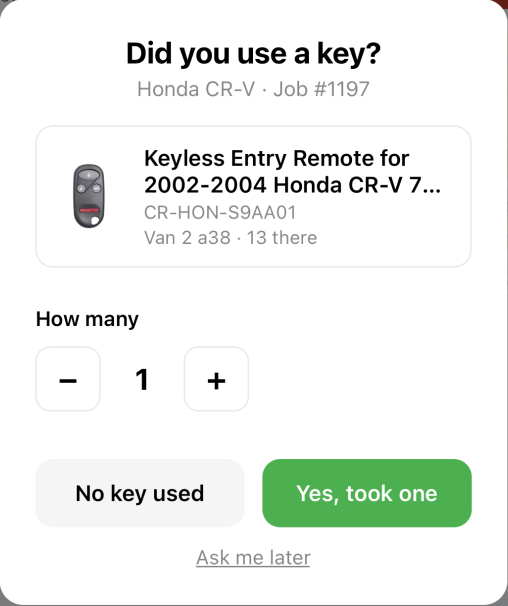
Keys you order in Keys Shop wait under Incoming until you receive them into a place. After a job, the Keys app asks the technician whether they used the key the customer chose.
One key, from order to job
- Order it. Buy the key in Keys Shop. It shows under Incoming on your inventory page.
- Receive it. When the box arrives, choose Receive, enter how many arrived and pick the van or bin it went into.
- Label it. Tick the key, choose your sticker size and print. Print at 100%, not "fit to page", so the code scans.
- Use it. A customer books and picks their key type. When the technician completes the job in the Keys app, they are asked "Did you use a key?" with the place it is in; "Yes, took one" takes it out of stock and records the job.
- Check it. Scan the van's sticker to see what is left in it.
Where to find it
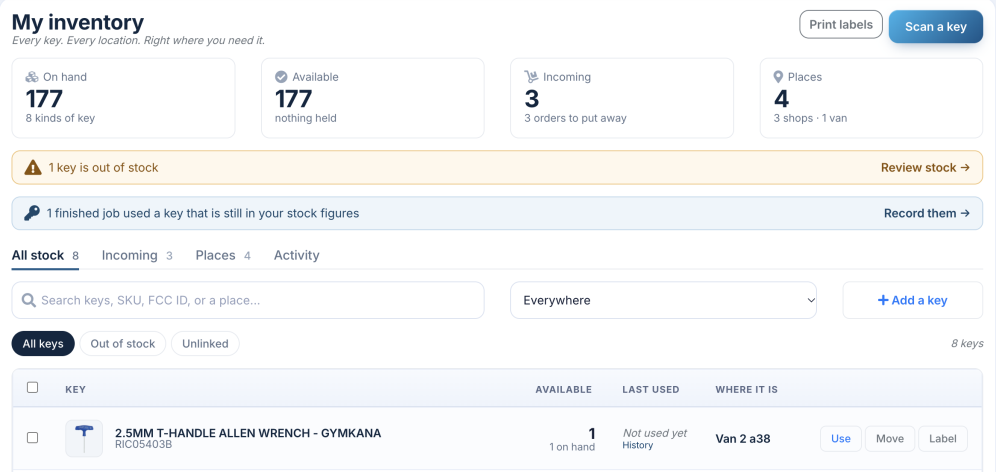
In the Keys web portal, open Keys Shop, then Inventory. The page opens on All stock, with tabs for Incoming, Places and Activity, and the Print labels and Scan a key buttons at the top.
Start with Places: add your shop and vans, then use Add a key to bring stock in. Your technicians answer the job question in the Keys app, and their answer counts against your business's stock.
Price and limits
- Inventory is part of your Keys provider account, with no separate subscription.
- Places, stickers, orders and counts are managed in the web portal; the Keys app asks the after-job question.
- The after-job question appears when the customer chose a key type while booking and you stock that key. For any other job, record the key with Use on the stock list.
- Only Keys Shop orders arrive under Incoming. Stock bought elsewhere is added with Received new stock.
- The portal page does not use your phone's camera itself: scan stickers with the phone's camera, or use a handheld scanner or the typed code.
- Opening a scanned sticker needs you signed in to the business that owns it. Signed out, Keys shows the code and asks you to sign in and scan again.
Get started
Register your business on Keys, then open Inventory in the web portal to add your places. The Keys app is free on iPhone and Android.


Frequently asked questions
Do I need special hardware?
No. Stickers print on standard label sheets or label printer rolls, and a phone camera opens a sticker's QR code. A handheld scanner that reads QR codes also works: it types the code into Scan a key in the portal.
Which label sizes can I print?
Six: US Letter sheets of 30 labels (2⅝ × 1 in) or 10 labels (4 × 2 in), an A4 sheet of 24 labels (63.5 × 33.9 mm), and label printer rolls of 50 × 25 mm, 57 × 32 mm and 102 × 51 mm. You choose the size when you print, can start on the first free label of a used sheet, and can print a check sheet to make sure your printer is not scaling.
How do keys come off stock after a job?
When the customer chose their key type while booking and you stock that key, the Keys app asks the technician "Did you use a key?" as soon as the job is completed, and shows where the key is kept. "Yes, took one" takes it out of stock and records the job; "No key used" is recorded too. Jobs nobody answered appear on your inventory page so you can record them later.
Do Keys Shop orders update my stock?
Yes, when they arrive. Keys you order in Keys Shop appear under Incoming. When the box arrives, choose Receive, enter how many arrived and where you put them; a partial delivery is fine.
Can I add a key that is not in the catalogue?
Yes. Type it in by hand and it starts at zero stock; you can link it to the matching catalogue product later. The Unlinked filter shows the keys that are not linked yet.
Can I check a van without opening the portal?
Scan the van's sticker with your phone and Keys shows what is in that place. You need to be signed in to the business account that owns the sticker; a sticker from another business shows nothing.
What does inventory cost?
Inventory is part of your Keys provider account. There is no separate subscription.